
Telegram Setup
Connect your CCCC working group to Telegram for mobile access.
Overview
Telegram is the easiest platform to set up. It's ideal for:
- Personal use
- Quick prototyping
- Individual developers
Prerequisites
- A Telegram account
- CCCC installed and running
Step 1: Create a Bot
- Open Telegram and search for
@BotFather - Start a chat and send
/newbot - Follow the prompts:
- Choose a display name (e.g., "My CCCC Bot")
- Choose a username (must end in
bot, e.g.,my_cccc_bot)
- BotFather will give you a token like:
123456789:ABCdefGHIjklMNOpqrsTUVwxyz - Save this token — you'll need it in the next step
Recommended: Disable Group Privacy
If you plan to use the bot in group chats, disable group privacy so the bot can see all messages:
- Send
/mybotsto BotFather - Select your bot → Bot Settings → Group Privacy
- Set to Disabled
Step 2: Configure CCCC
Option A: Via Web UI (Recommended)
- Open the CCCC Web UI at
http://127.0.0.1:8848/ - Go to Settings (gear icon in header)
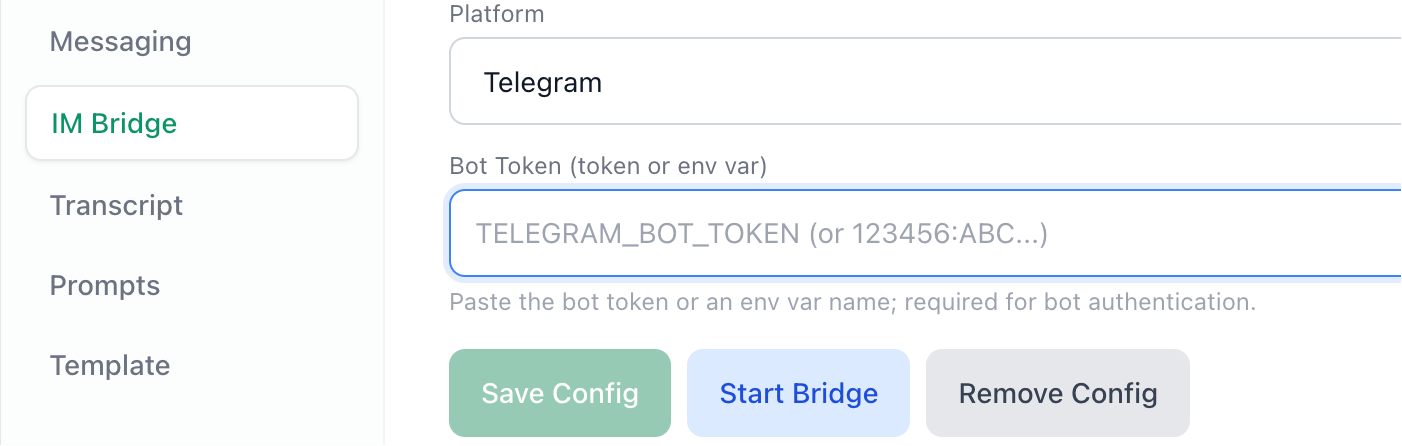
- Navigate to the IM Bridge tab
- Select Telegram as the platform
- Enter your bot token:
- Paste the token directly (e.g.,
123456789:ABCdefGHIjklMNOpqrsTUVwxyz) - Or enter an environment variable name (e.g.,
TELEGRAM_BOT_TOKEN)
- Paste the token directly (e.g.,
- Click Save Config
Security Best Practice
For production use, store the token in an environment variable instead of pasting it directly:
# Add to your shell profile (~/.bashrc, ~/.zshrc, etc.)
export TELEGRAM_BOT_TOKEN="your-token-here"
Then enter TELEGRAM_BOT_TOKEN in the Web UI. Never commit tokens to git.
Option B: Via CLI
# Using environment variable name
cccc im set telegram --token-env TELEGRAM_BOT_TOKEN

# Verify configuration
cccc im config
Both methods save the configuration to your group's group.yaml:
im:
  platform: telegram
  token_env: TELEGRAM_BOT_TOKEN
Step 3: Start Bridge & Subscribe
Start the Bridge
Via Web UI: Click Save Config to save configuration, then click Start Bridge to start and show Running status.
Via CLI:
cccc im startVerify it's running:
cccc im statusAuthorize in Telegram
New chats must be authorized before they can use the bot:
- Open Telegram and find your bot (search by username)
- Start a chat with the bot
- Send
/subscribe— the bot replies with a one-time binding key:abc123xyz - Authorize the chat (choose one):
- Web (recommended): Open CCCC Web → Settings → IM Bridge, find it in Pending Requests, and click Approve (or paste the key in Bind)
- Foreman-assisted: If foreman is online, send the key to foreman and ask foreman to bind it
- CLI: Run
cccc im bind --key <key>on the server
- Once authorized, the chat can immediately send and receive messages — no further commands needed
For group chats:
- Add the bot to your group
- Follow the same authorization flow above
- All authorized chats receive messages from CCCC
Usage
Sending Messages to Agents
Telegram supports two ways to send messages:
In group chats — @mention the bot and type your message directly:
@YourBotName Please implement the login featureOr use the explicit /send command:
@YourBotName /send @all Status update pleaseIn direct messages — just type your message:
Please implement the login featureImplicit Send
When you @mention the bot (in groups) or send a direct message, plain text is automatically treated as /send to the foreman. You only need the explicit /send command when targeting specific agents like @all or @peers.
Targeting Specific Agents
Use @mention syntax with the /send command:
/send @foreman Please review the PR
/send @peer-1 Run the tests
/send @all Status update please
Receiving Messages
After authorization, you will automatically receive:
- Agent responses
- Status updates
- Error notifications
Use /verbose to toggle whether you see agent-to-agent messages.
File Attachments
Attach files to your message. They're downloaded and stored in CCCC's blob storage, then forwarded to agents.
Commands Reference
| Command | Description |
|---|---|
/subscribe | Start authorization flow — generates a one-time binding key |
/unsubscribe | Stop receiving messages |
/send <message> | Send to foreman (default) |
/send @<actor> <message> | Send to a specific agent |
/send @all <message> | Send to all agents |
/send @peers <message> | Send to non-foreman agents |
/status | Show group and agent status |
/pause | Pause message delivery |
/resume | Resume message delivery |
/verbose | Toggle verbose mode (see all agent messages) |
/help | Show available commands |
Troubleshooting
Bot not responding
Check if the bridge is running:
bashcccc im statusCheck logs for errors:
bashcccc im logs -fVerify token is correct — re-check with BotFather (
/mybots→ select bot → API Token)
"Unauthorized" error
Your token is invalid. Get a new one from BotFather:
- Send
/mybotsto BotFather - Select your bot
- Click API Token → Revoke current token
- Update your token in CCCC Settings (Web UI) or environment variable
Messages not delivered
- Ensure the chat is authorized (run
/subscribe→ bind the key via Web, foreman-assisted bind, or CLI) - Check that the CCCC daemon is running
- Verify the bridge status in Web UI or via
cccc im status
Rate limiting
Telegram has rate limits. If you're sending many messages:
- Messages may be delayed
- Consider using
/verboseto disable verbose mode and reduce traffic
Security Notes
- Keep your bot token secret
- Consider enabling 2FA on your Telegram account
- Review who has access to chats where the bot is subscribed
- The bot can see all messages in groups where it's added
- New chats require key-based authorization before they can interact with the bot — send
/subscribeto generate a one-time key, then confirm it from the server side (Web Settings > IM Bridge, foreman-assisted bind, or CLI); once bound, the chat is fully authorized - Binding keys expire after 10 minutes; generate a new one with
/subscribeif it lapses - The bind operation must be performed via CCCC Web Settings (IM Bridge), foreman-assisted bind, or
cccc im bind --keyon the server — Telegram users cannot self-authorize