
Feishu (Lark) Setup
Connect your CCCC working group to Feishu for enterprise collaboration in China.
Overview
Feishu (飞书, also known as Lark internationally) is ideal for:
- Chinese enterprises
- Teams already using Feishu
- Bytedance ecosystem users
Prerequisites
- Feishu enterprise account with admin access
- CCCC installed and running
Step 1: Create an App
- Go to Feishu Open Platform
- Click Create Custom App
- Fill in the app information:
- App Name (e.g., "CCCC Bot")
- App Description
- App Icon
- Click Create
Step 2: Configure Permissions
- Go to Permissions & Scopes
- Click Add permission scopes to app
- Add the following scopes exactly as shown below
- Click Confirm and Apply
Copyable scope configuration:
{
  "scopes": {
    "tenant": [
      "application:application.app_message_stats.overview:readonly",
      "application:application:self_manage",
      "application:bot.menu:write",
      "cardkit:card:read",
      "cardkit:card:write",
      "contact:user.employee_id:readonly",
      "corehr:file:download",
      "event:ip_list",
      "im:chat.access_event.bot_p2p_chat:read",
      "im:chat.members:bot_access",
      "im:message",
      "im:message.group_at_msg:readonly",
      "im:message.p2p_msg:readonly",
      "im:message:readonly",
      "im:message:send_as_bot",
      "im:resource"
    ],
    "user": [
      "im:chat.access_event.bot_p2p_chat:read"
    ]
  }
}
Required Permissions
| Scope | Purpose |
|---|---|
im:message*, im:resource, im:chat.members:bot_access | Bot send/receive message flow and resource access |
im:chat.access_event.bot_p2p_chat:read | Receive bot P2P chat access events |
application:*, cardkit:* | Bot self-management, menus, cards, and app stats |
contact:user.employee_id:readonly, corehr:file:download, event:ip_list | Supporting identity, file, and platform event access |
Step 3: Configure CCCC
- In your app dashboard, go to Credentials & Basic Info
- Copy App ID and App Secret
Security
Keep your App Secret confidential. Never commit it to version control.
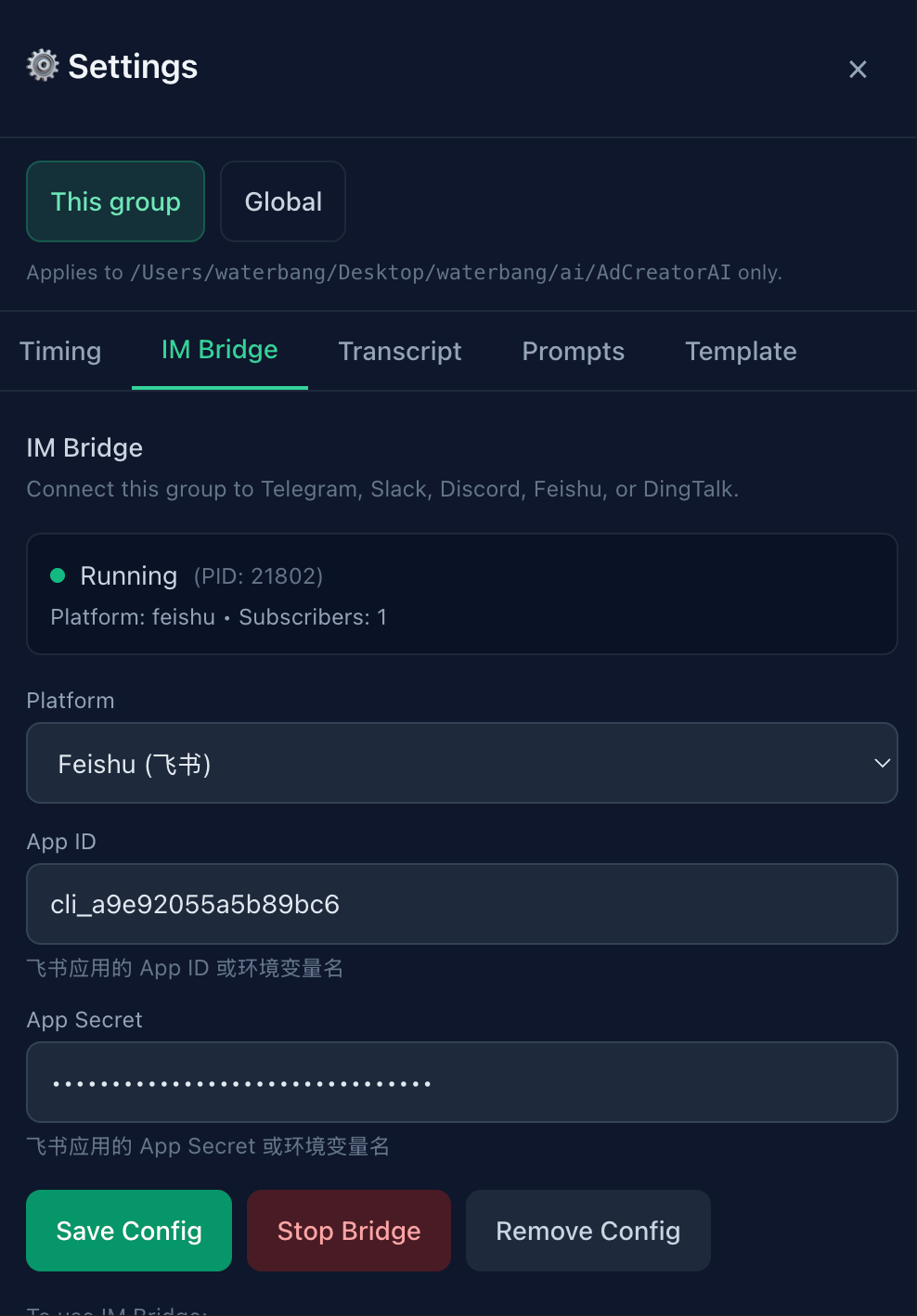
Option A: Via Web UI
- Open the CCCC Web UI at
http://127.0.0.1:8848/ - Go to Settings (gear icon in header)
- Navigate to the IM Bridge tab
- Select Feishu/Lark as the platform
- Enter your credentials:
- App ID: Your Feishu App ID (e.g.,
cli_a9e92055a5b89bc6) - App Secret: Your Feishu App Secret
- App ID: Your Feishu App ID (e.g.,
- Click Save Config
Option B: Via CLI
First set environment variables:
export FEISHU_APP_ID="cli_your_app_id"
export FEISHU_APP_SECRET="your_app_secret"
Then configure CCCC:
cccc im set feishu \
  --app-key-env FEISHU_APP_ID \
  --app-secret-env FEISHU_APP_SECRET
Both methods save to group.yaml:
im:
  platform: feishu
  feishu_app_id_env: FEISHU_APP_ID
  feishu_app_secret_env: FEISHU_APP_SECRET
Step 4: Start the Bridge
Via Web UI
Click the Save Config button in the IM Bridge settings. The bridge will start automatically and show Running status.
Via CLI
cccc im startVerify it's running:
cccc im statusStep 5: Enable Persistent Connection (Recommended)
Prerequisite
The CCCC IM Bridge must be running before you can configure event subscriptions. Enable persistent connection so CCCC can receive events via a long connection (no public callback URL required for this mode).
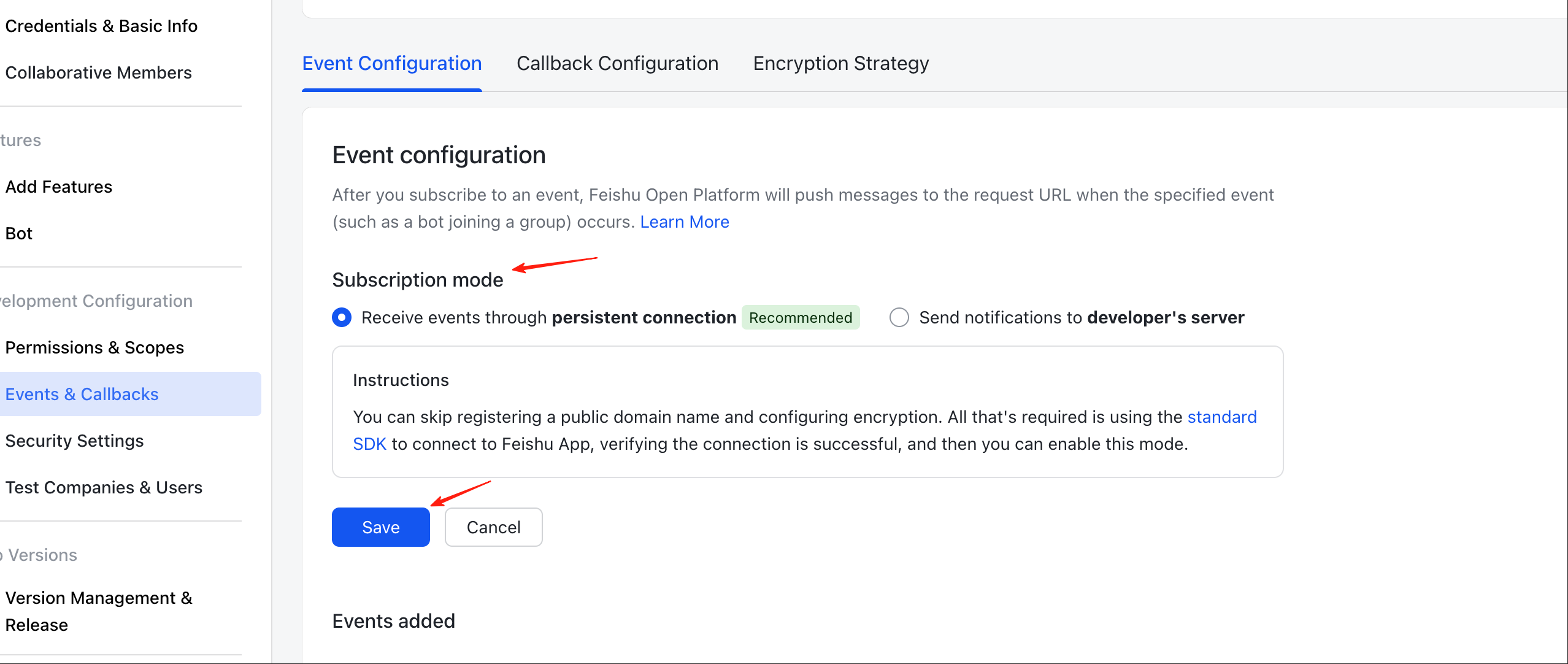
- Go back to Feishu Open Platform
- Navigate to your app → Events & Callbacks
- In Event Configuration tab, find Subscription mode
- Select Receive events through persistent connection (Recommended)
- Click Save
Step 6: Configure Event Subscriptions
- In Event Subscriptions, click Add Events
- Subscribe to the following events:
| Event | Purpose |
|---|---|
im.message.receive_v1 | Receive messages |
im.message.message_read_v1 | Read receipts |
- Click Save
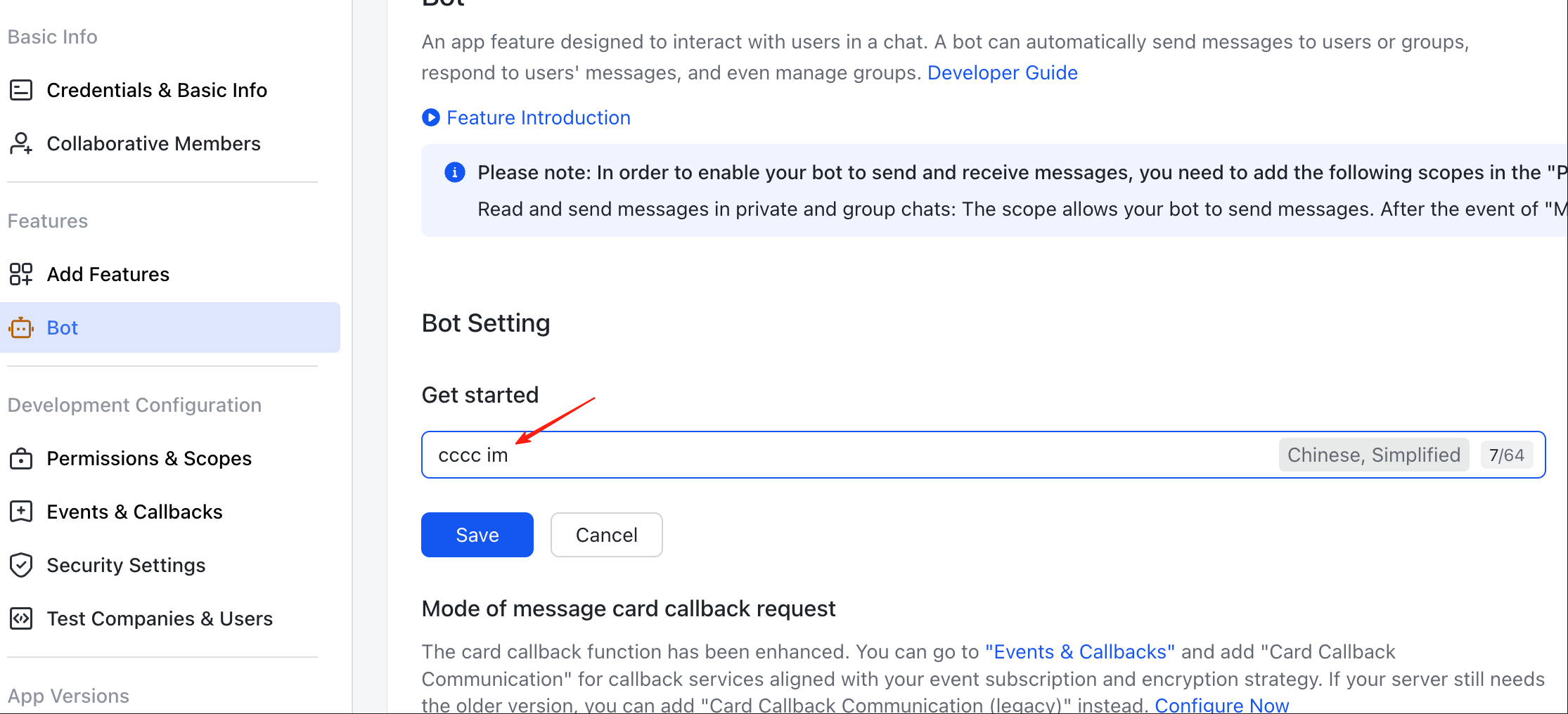
Step 7: Enable Bot
Why This Step?
You must enable the Bot capability so users can find and chat with your bot after the app is published.
- In the sidebar, go to Features → Bot
- In Bot Setting, fill in the Get started field with a greeting message (e.g., "cccc im")
- Click Save
Step 8: Publish the App
- Go to Version Management & Release
- Create a new version
- Submit for review (enterprise apps may auto-approve)
- Once approved, publish to your organization
Step 9: Subscribe in Feishu
- Find the bot in your Feishu app
- Start a chat or add to a group
- Send
/subscribe - Confirm the subscription
Usage
Sending Messages to Agents
Feishu supports two ways to send messages:
In group chats — @mention the bot and type your message directly:
@YourBotName 请实现登录功能Or use the explicit /send command for specifying recipients:
@YourBotName /send @all Status update pleaseIn direct messages — just type your message:
请实现登录功能Implicit Send
When you @mention the bot (in groups) or send a direct message, plain text is automatically treated as /send to the foreman. You only need the explicit /send command when targeting specific agents like @all or @peers.
Targeting Specific Agents
Use @mention syntax with the /send command:
/send @backend Check the API endpoints
/send @all Status update please
/send @peers Please review the PR
Receiving Messages
After subscribing, you will automatically receive:
- Agent responses
- Status updates
- Error notifications
Use /verbose to toggle whether you see agent-to-agent messages.
File Sharing
Attach files to your message. Feishu files are downloaded and stored in CCCC's blob storage, then forwarded to agents.
Commands Reference
| Command | Description |
|---|---|
/subscribe | Start receiving messages from CCCC |
/unsubscribe | Stop receiving messages |
/send <message> | Send to foreman (default) |
/send @<actor> <message> | Send to a specific agent |
/send @all <message> | Send to all agents |
/send @peers <message> | Send to non-foreman agents |
/status | Show group and agent status |
/pause | Pause message delivery |
/resume | Resume message delivery |
/verbose | Toggle verbose mode (see all agent messages) |
/help | Show available commands |
Troubleshooting
"Invalid app_id" Error
- Verify your App ID in the Feishu Open Platform
- Check environment variable is set correctly
- Ensure the app is published and approved
"Permission denied" Error
- Go to Permissions & Scopes
- Add the missing permission
- Submit a new version for approval
Bot not receiving messages
- Check Event Subscriptions are configured
- Verify the app is installed in the chat
- Ensure the app version is published
- Make sure CCCC IM Bridge is running
Token expired
CCCC auto-refreshes tokens, but if issues persist:
cccc im stop
cccc im start
Advanced Configuration
CCCC currently supports:
- Outbound messages via REST APIs
- Inbound messages via persistent connection (Python
lark-oapi)
Webhook callbacks (developer server URL), message cards, and encryption settings are not configured through CCCC at the moment.
Security Notes
- Store credentials in environment variables or a secrets manager
- Use the minimal required permissions
- Review app access regularly
- Enable platform encryption for sensitive communications (optional)
- Audit app usage through Feishu admin console